
How to Use Multi-User & Team Collaboration in Phynite Analytics
Overview
The Multi-User & Team Collaboration Tool in Phynite Analytics lets you securely share your analytics dashboard with virtual assistants, contractors, or agencies.
You choose who can log in, which properties they can see, and whether they can make edits or only view data. Billing and ownership always remain private to the account owner.

How It Works
This feature allows you to:
- Invite team members by email
- Assign roles (Admin or Viewer)
- Select specific properties to share
- Control access levels (Full Access or View Only)
- Revoke access anytime
It’s collaboration made easy — with permission levels that keep your data safe and your workflow smooth.
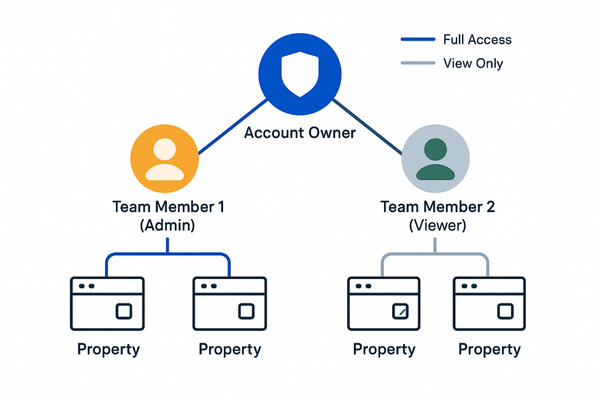
Roles & Permissions
Account Owner
- Full control of all account settings and billing
- Can invite, remove, and manage team members
- Can edit or revoke property access
Admin
- Can view and edit analytics for shared properties
- Cannot manage billing or invite others
Viewer
- Can only view dashboards and exports
- Cannot edit settings, integrations, or team access
Tip: You can change any team member’s role or access anytime from Team Management.

Inviting a Team Member (Account Owners)
- Open Team Management → Dashboard → Profile/Settings → Team Management
- Click Invite Team Member
- Enter the team member’s email and select their role (Admin or Viewer)
- Choose which properties to share now (or do it later)
- Click Send Invitation
Your invitee receives an email with login instructions.
- New users: Create a password within 24 hours.
- Existing users: Gain access instantly after login.

Accepting an Invitation (Team Members)
- Check your email for the invitation
- Click Set Your Password (new users only)
- Log into Phynite Analytics
- Use the property selector dropdown to switch between assigned properties
Each property shows your role badge (Owner, Full Access, or View Only) so you always know your level of access.
Managing Team Members & Access
To Change a Role:
Team Management → three-dot menu (…) → Change Role
To Adjust Property Access:
Property Management → Manage Access → Check or uncheck properties → Select access level → Save
To Remove a Team Member:
Team Management → three-dot menu (…) → Remove from Team → Confirm
To Check Seat Usage:
Banner at the top of Team Management shows your usage (e.g., “Using 1 of 2 seats”).
Typical Use Cases
Virtual Assistant Access
Invite your VA as a Viewer so they can monitor analytics and export reports without changing settings.
SEO Contractor Access
Invite an SEO specialist as an Admin to edit GA4 settings or analyze data for specific properties.
Multi-Client VA
A VA can manage analytics for multiple clients. All shared properties appear in one property selector.
Team by Property
Assign different members to specific properties — perfect for multi-site owners or agencies.
Limits & Controls
- Team Members: 2 included by default (Active + Pending count toward limit)
- Properties: 5 per account
- Access Control: Team members can’t view billing, invite others, or delete properties they don’t own
- Roles: Owner → Admin → Viewer
- Security: Access controlled with Auth0 authentication and encrypted tokens
Contact support if you need additional seats or property limits.
Troubleshooting
Team Member Can’t See Properties
- Confirm property access was granted (not just invitation).
- Ensure status isn’t Pending — they must log in first.
- Ask them to log out, clear cache, and log back in.
Invitation Email Not Received
- Check spam/junk folder.
- Verify the email address in Team Management.
- If needed, remove and resend invitation.
Seat Limit Reached
- Remove inactive or pending members, or contact support to increase limit.
Wrong Access Level
- Open Team Management → (…) → Manage Properties → Adjust access → Save changes.
Frequently Asked Questions
No. You can invite them first, then assign property access later.
Yes. They’ll see all shared properties from multiple clients under one login.
Two seats are included by default; additional seats are available upon request.
Yes. Removal instantly revokes all property access.
No. Only account owners can access billing and subscription settings.