
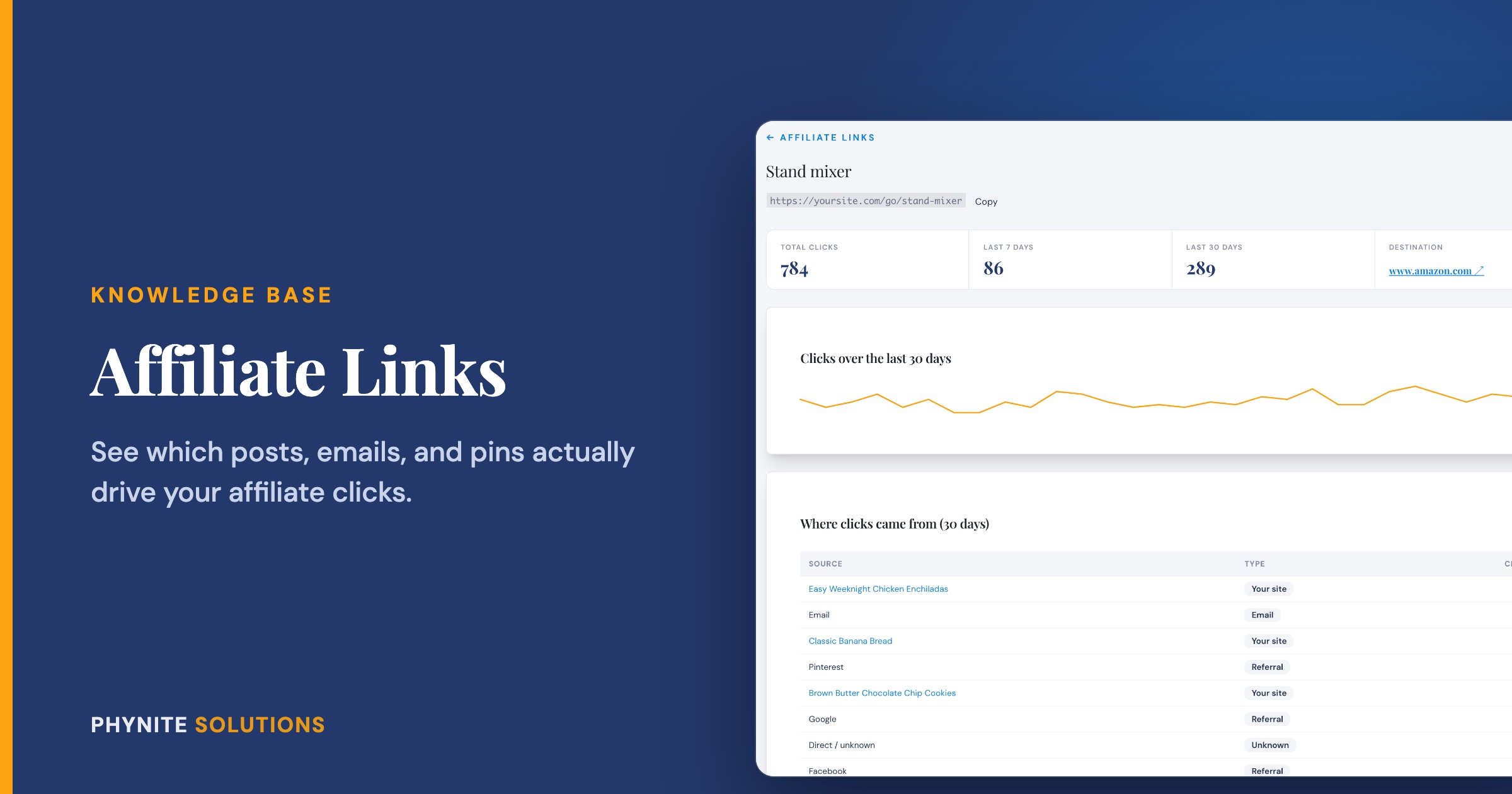
How to Track Affiliate Link Clicks with Affiliate Links
Overview
Affiliate income is a big part of how many food bloggers earn, but it can be hard to tell what is actually working. Amazon and other programs show you sales, and they have been showing you less and less. What they cannot take away is the click, because the click happens on your site.
Affiliate Links in Phynite Blog Care gives you that click. You turn an affiliate link into a clean link on your own site, like yoursite.com/go/chef-knife. When a reader clicks it, we count the click, note where it came from, and send them straight on to the product. They will never notice the difference.
Built from a member’s request: Affiliate Links started as a direct ask from one of our current Blog Care members. They generously agreed to let us share it with everyone, so every Blog Care member gets it too.
How It Works
With Affiliate Links you can:
- Create clean, branded links for any affiliate product
- See total clicks, plus clicks in the last 7 and 30 days
- See a 30-day trend for each link
- See where clicks came from: the post, your email newsletter, Pinterest, Facebook, Instagram, Google, and more
- Pause a link without deleting it
- Use your links anywhere, including with Tasty Links
The numbers are built to be trustworthy. Bots, email and link scanners, browser prefetching, double-clicks, and you browsing your own site while logged in are all left out of your counts.
Creating a Tracked Link
- In your WordPress dashboard, open Phynite Blog Care → Affiliate Links
- Add a Label so you know what the link is for, like “Chef’s knife”
- Paste the affiliate URL into Target URL
- Choose a Slug, the short name at the end of your link, like chef-knife
- Save, then click Copy next to your new cloaked URL
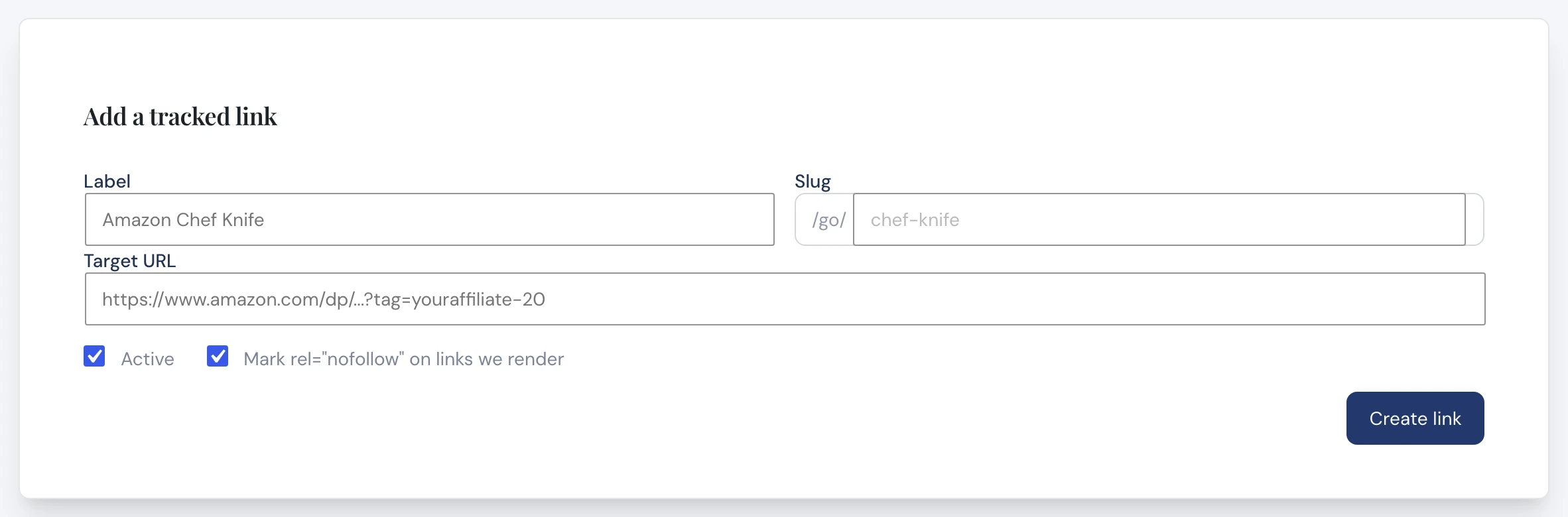
That is it. Use the cloaked URL anywhere you would have used the affiliate link.
Using Your Links with Tasty Links
If you use Tasty Links to automatically link keywords, point the keyword at your cloaked URL instead of the raw affiliate link. Now every link Tasty Links adds across your site gets tracked, without you editing a single post.
Important: Google asks that affiliate links be marked as sponsored. In Tasty Links → Settings, turn on the option to add rel=”sponsored nofollow” to your links. You only need to do this once.
Keep Up to Date
Get The Phynite Letter: news on our products and services, plus tips and tricks to keep your site running at its best.
Seeing Where Your Clicks Came From
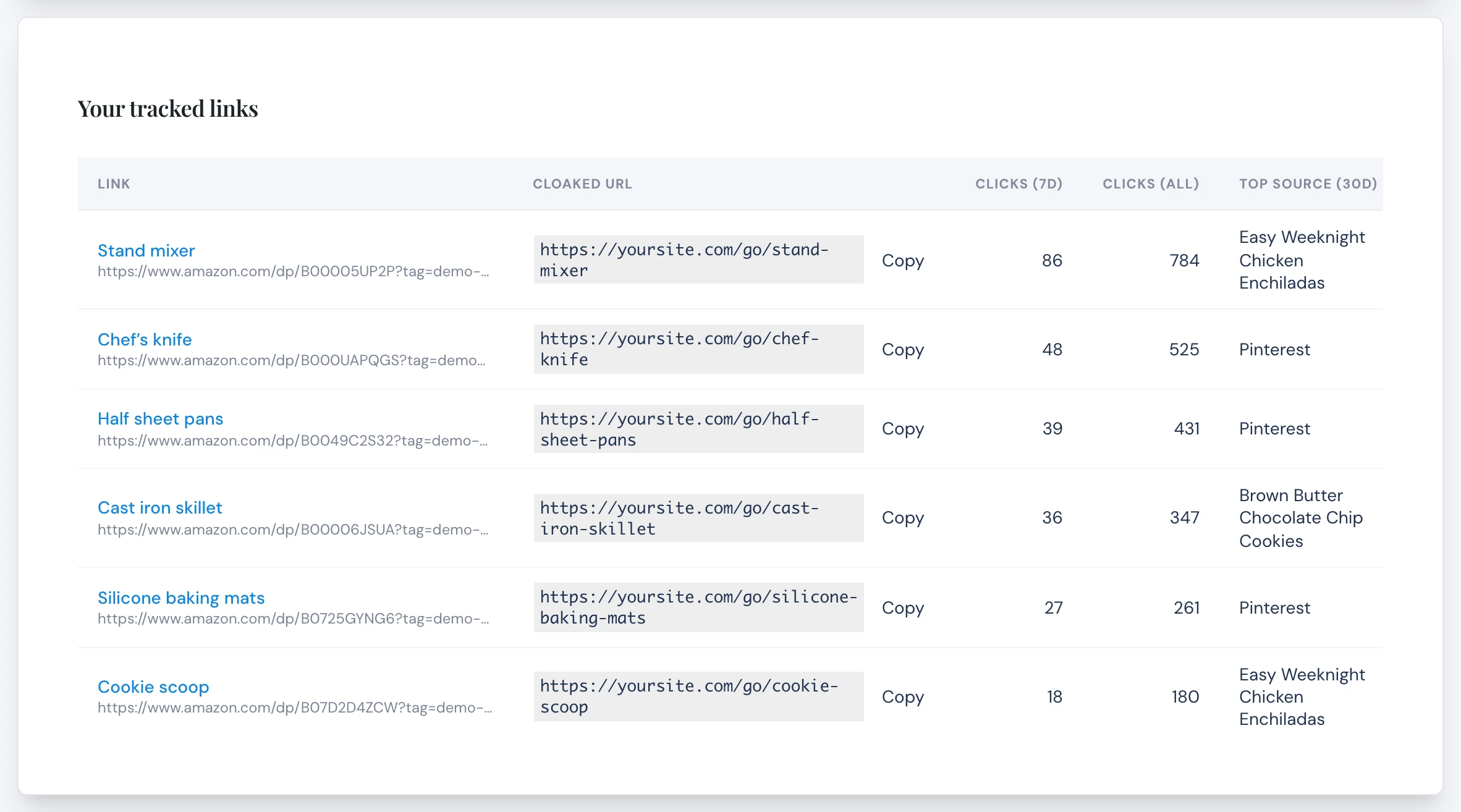
Click any link’s name on the Affiliate Links screen to open its details. Alongside total clicks and your 30-day trend, you will see Where clicks came from. The main Affiliate Links screen also shows a summary across all of your links and the top source for each one.
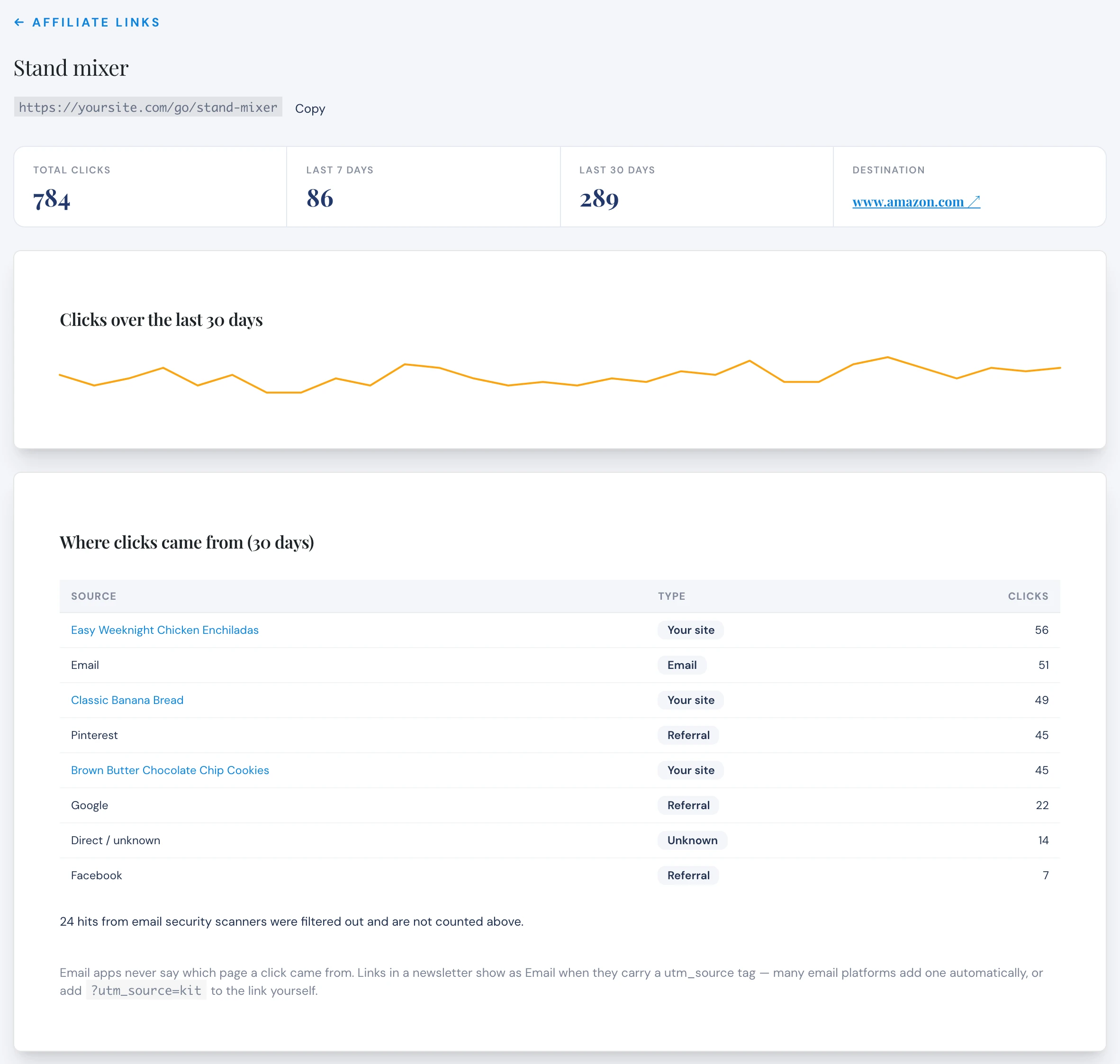
A click from one of your posts shows that post. Clicks from Pinterest, Facebook, Instagram, and Google show up by name.
Tracking clicks from your emails
Email apps do not tell websites where a click came from, so on its own, a click from your newsletter looks like “Direct.” To fix that, add a tag to the end of the link you put in your email, like this: yoursite.com/go/chef-knife?utm_source=kit. Clicks from that email will then show up as email traffic.
Tip: Clicks from email security scanners are filtered out and reported separately, so a newsletter send will not inflate your numbers. If you also use Email Guard, the two work together.
Typical Use Cases
Find your top-earning content
See which posts send the most clicks to a product, and give those posts a refresh or a little extra promotion.
Compare your channels
Is a product getting more clicks from your newsletter, from Pinterest, or from search? Now you know where to put your energy.
Swap a product everywhere at once
Product discontinued or a better deal came along? Change the link’s Target URL once, and every place you used that cloaked link updates instantly.
Troubleshooting
My click counts look too low
Very aggressive page caching can occasionally answer a click before it reaches your site, so it never gets counted. Let us know and we will check your caching settings. Blog Care members, we handle this for you.
My click counts look too high
Some speed plugins load links in the background when a reader hovers over them. Let us know and we will make sure your links are excluded from that preloading.
Most clicks show as “Direct / unknown”
This is usually email. Add a utm_source tag to the links in your newsletter as shown above, and those clicks will be labeled correctly going forward.
Frequently Asked Questions
No. They click, and land on the product page just like before.
No. Your /go/ links are set up so search engines do not index them.
No. You can paste your cloaked links into posts, recipe cards, and emails by hand. Tasty Links just makes it automatic.
Yes. You can choose a different word in Phynite Blog Care → Settings.
No. Clicks while you are logged in to your site are left out, so testing your links will not skew your numbers.
Affiliate Links is part of Phynite Blog Care, included with every Blog Care plan: Tiny Much, Medium Much, and Big Much.